How to Create an HTML File: Step-by-Step Guide
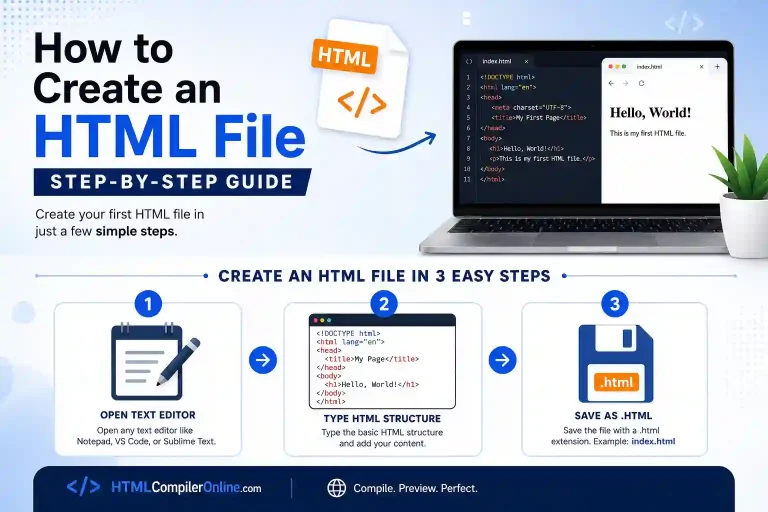
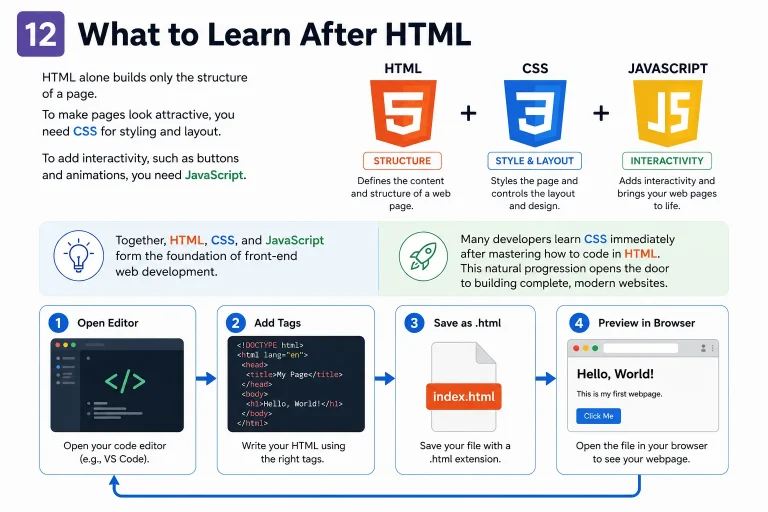
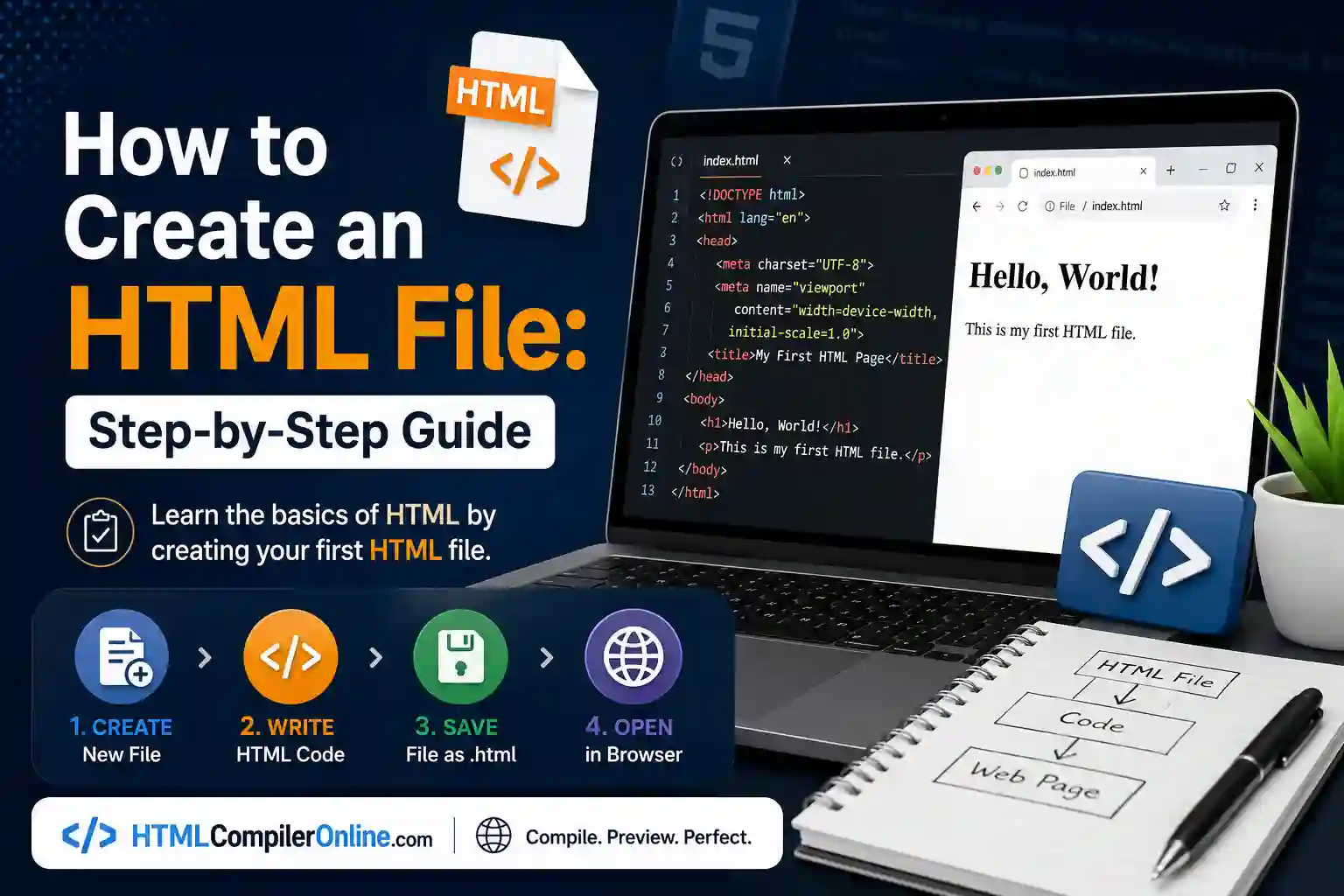
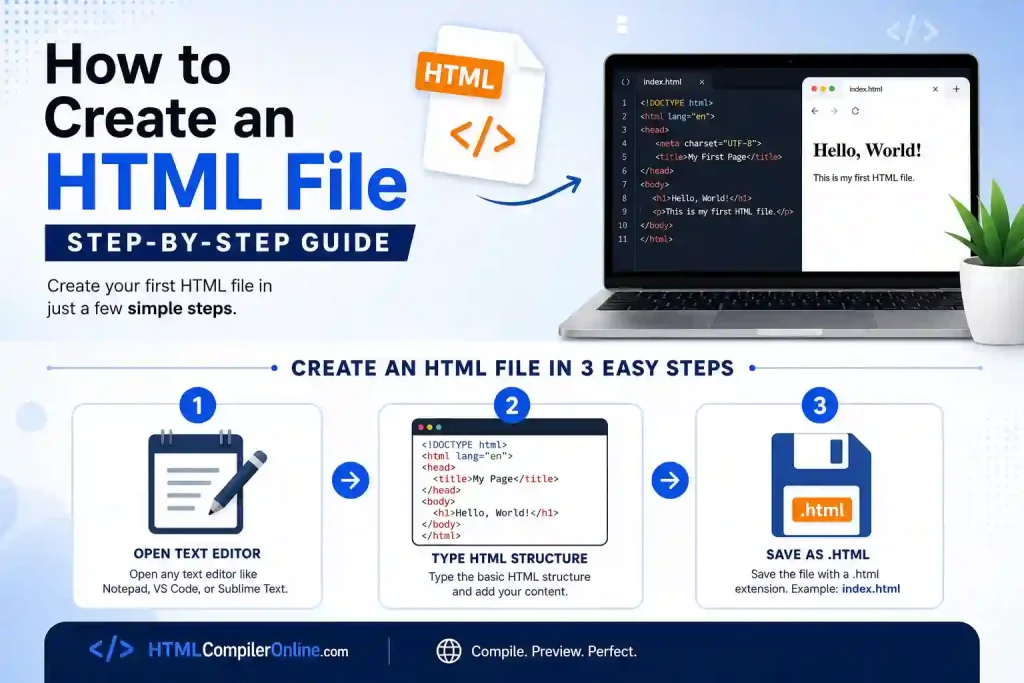
To create an HTML file, open a plain text editor, type a basic HTML structure starting with <!DOCTYPE html>, then save the file using the .html extension instead of .txt. Choose “All Files” in the save dialog so the editor does not add .txt automatically. Double-click the saved file to open it in your browser.
Table of Contents
1. What Is an HTML File?
An HTML file is a plain text file saved with a .html extension. It holds the tags and content that a browser reads to display a web page. Every website you visit is built from one or more of these files.
Knowing how to create an HTML file is the very first practical skill in web development. Unlike a Word document, an HTML file stores no hidden formatting. It only stores readable text and tags, which keeps it small and fast to load.
2. What You Need to Create an HTML File
You only need two tools to create an HTML file. Both are usually free and already on your computer. No installation or paid software is required.
- A plain text editor, such as Notepad, TextEdit, or VS Code
- A web browser, such as Chrome, Firefox, Edge, or Safari
- Basic knowledge of core HTML tags like <html>, <head>, and <body>
Avoid using word processors like Microsoft Word for this task. They add hidden formatting that can break your HTML file. A plain text editor keeps the file clean and ready for a browser to read.
3. How to Create an HTML File on Windows
Windows users can create an HTML file using the built-in Notepad app. This is the fastest and simplest option for beginners. Follow these steps in order.
- Open Notepad from the Start menu search bar.
- Type a basic HTML structure into the blank window.
- Click File, then Save As.
- Set “Save as type” to All Files instead of Text Documents.
- Name the file index.html and click Save.
- Double-click the saved file to open it in your default browser.
| <!DOCTYPE html><html lang=”en”><head> <meta charset=”UTF-8″> <title>My First Page</title></head><body> <h1>Hello World!</h1></body></html> |
Setting the save type to All Files is the most important step on Windows. Without it, Notepad adds a hidden .txt extension. This is the most common mistake beginners make when they try to make an HTML file for the first time.
4. How to Create an HTML File on Mac
Mac users can create an HTML file using TextEdit. A small settings change is needed first, since TextEdit defaults to rich text mode.
- Open TextEdit from Launchpad or Spotlight search.
- Go to TextEdit, then Preferences, and select Plain Text as the default format.
- Type your basic HTML structure into a new document.
- Choose File, then Save.
- Type a file name ending in .html, such as index.html.
- Uncheck “If no extension is provided, use .txt” before saving.
Switching to plain text mode stops TextEdit from adding rich formatting code. This step matters just as much as the file extension itself. Skipping it is a common reason a Mac HTML file fails to open correctly.
5. How to Create an HTML File in VS Code
VS Code is a free, advanced code editor used by most professional developers. It offers shortcuts that speed up how to create an HTML file dramatically.
- Open VS Code and create a new file with File, then New File.
- Save it immediately with a .html extension so VS Code applies HTML formatting.
- Type an exclamation mark (!) on the first line.
- Press Tab or Enter to trigger the Emmet shortcut.
- VS Code instantly fills in a complete HTML5 boilerplate.
This Emmet shortcut is one of the most useful tricks in modern web development. It saves time by generating the DOCTYPE, html, head, and body tags automatically. Beginners can then focus on adding content instead of retyping the same structure every time.
You might read this usefull guide too: How to Code in HTML: Beginner’s Guide With Examples
6. .html vs .htm: Does the Extension Matter?
Both .html and .htm extensions work in every modern browser. The three-letter .htm version comes from older Windows systems that once limited file extensions to three characters. Today, that limitation no longer exists.
| Extension | Notes |
|---|---|
| .html | Standard, most widely used extension today |
| .htm | Legacy format, still supported by all browsers |
For consistency, most developers now choose .html over .htm. Search engines and servers treat both the same way. Pick one format and use it consistently across your project.
7. Naming Your HTML File Correctly
File names matter more than beginners expect. A poorly named file can break links or fail to load as the site’s homepage. Follow a few simple naming rules.
- Name your homepage file index.html so servers load it automatically.
- Use lowercase letters only, since some servers are case-sensitive.
- Avoid spaces; use hyphens instead, like contact-us.html.
- Avoid special characters such as #, %, or &.
- Keep names short and descriptive of the page content.
Following these naming rules prevents broken links later. It also keeps your project organized as you create more than one HTML file. Clean file names make debugging much easier down the line.
8. Common Errors When Creating an HTML File
Beginners run into the same few problems again and again. Knowing them in advance saves time when you sit down to create an HTML file.
- The file saves as index.html.txt instead of index.html
- The file opens as plain text instead of rendering in the browser
- Special characters in the file name break the link
- The file is saved in the wrong folder and cannot be found
- Rich text formatting from Word corrupts the HTML tags
Most of these errors trace back to the save dialog settings. Always confirm the file extension before closing your editor. A quick check in File Explorer or Finder confirms the file was saved correctly.
9. Creating Multiple HTML Files for a Website
A full website usually needs more than one HTML file. Each page, such as About or Contact, typically gets its own file inside the same project folder.
| Page | Suggested File Name |
|---|---|
| Homepage | index.html |
| About page | about.html |
| Contact page | contact.html |
| Blog page | blog.html |
Keeping all HTML files in one main folder makes linking between pages simple. Use relative links, such as href=”about.html”, to connect pages together. This structure scales well as your site grows.
10. Using Online HTML File Generators
Online code editors let you write and preview HTML without installing anything. They are useful for quick tests or learning on a shared computer.
- Great for testing small snippets instantly in the browser
- No download or installation required
- Often include live preview panes for instant feedback
- Not ideal for saving large, multi-page projects long term
Online tools are a good starting point, but most developers move to a local text editor as their skills grow. Local files give you full control over saving, organizing, and uploading your project.
11. Summary
Creating an HTML file only takes a text editor and a browser. Type the basic HTML structure, then save the file with a .html extension instead of .txt. Windows users rely on Notepad, Mac users use TextEdit, and developers often prefer VS Code with Emmet shortcuts. Careful file naming and extension checks prevent most beginner errors.
You can also use our online html css js comipler online for free with out any hassel.
12. FAQs
Q: How do I create an HTML file on my computer?
A: Open a plain text editor, type a basic HTML structure, and save the file with a .html extension. On Windows, set “Save as type” to All Files first. This is the quickest way to create an HTML file.
Q: Why does my HTML file open as a text file?
A: This usually happens because the file was saved with a hidden .txt extension. Reopen the save dialog and choose All Files instead of Text Documents. Rename the file to end in .html and save it again.
Q: Can I create an HTML file without coding software?
A: Yes, you can create an HTML file using Notepad on Windows or TextEdit on Mac. Both are free and already installed on most computers. No special coding software is required for basic files.
Q: What is the difference between .html and .htm?
A: Both extensions work the same way in every modern browser. The .htm version is a legacy three-character format from older systems. Most developers today use .html for consistency.
Q: Do I need to name my HTML file index.html?
A: Only your homepage needs to be named index.html so servers load it by default. Other pages, like about.html or contact.html, can use any clear, descriptive name. Keep names lowercase and avoid spaces.