How to Run HTML Code: Easy Ways to Preview HTML
| The fastest way to run HTML code is to save the file with a .html extension and open it in any web browser, either by double-clicking it or dragging it into the browser window. No compiling, server, or installation is needed for basic pages. For live updates while editing, tools like VS Code Live Server or an online HTML compiler work well too. |
1. What Does It Mean to “Run” HTML Code?
Running HTML code simply means letting a browser read your file and display it as a web page. Unlike programming languages, HTML has no compiling or building step. The browser interprets the tags directly and renders the result instantly.
This makes learning how to run HTML code far easier than running other languages. You do not need a server, terminal, or special software to see results. A saved file and any modern browser are enough to get started.
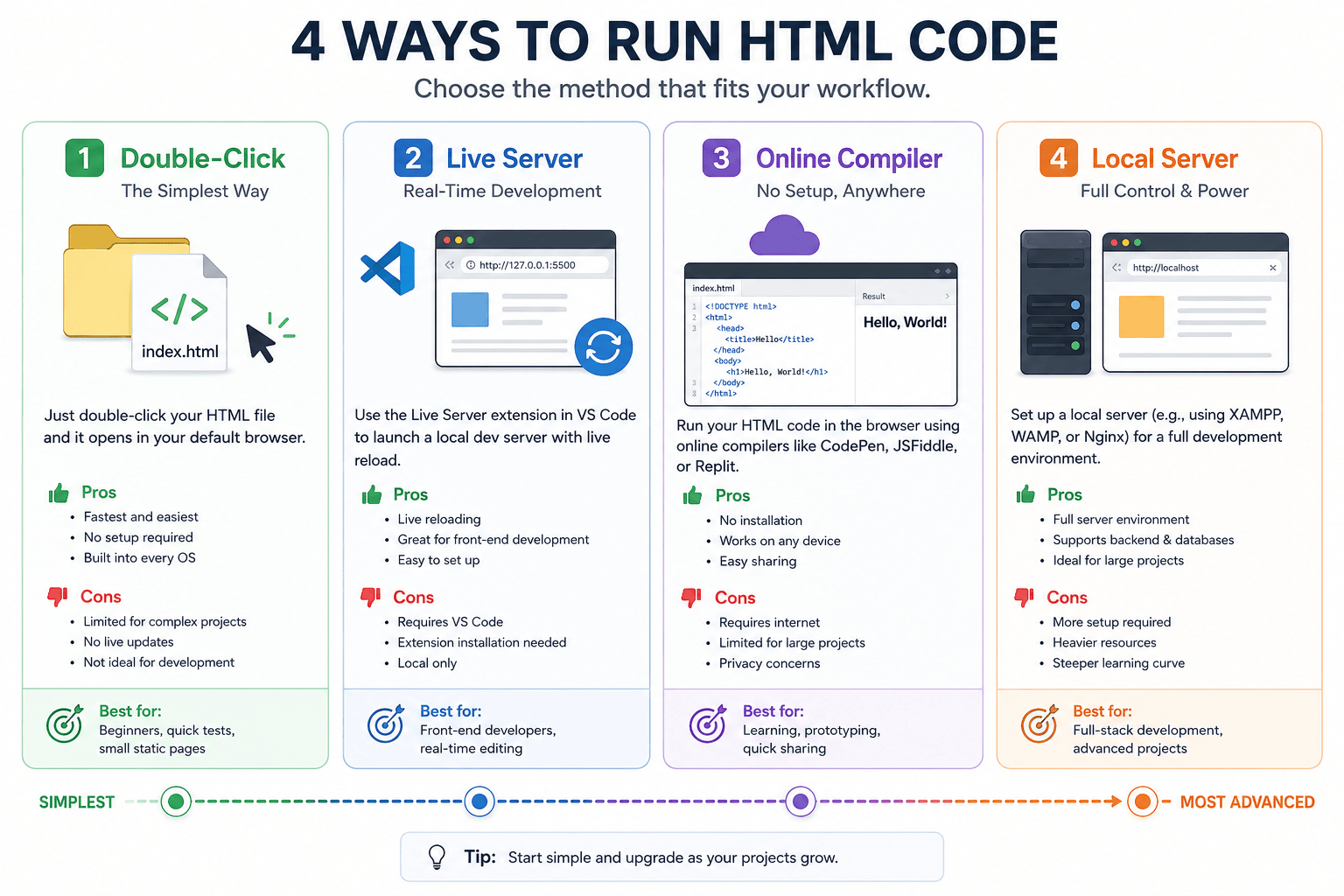
2. Method 1: Open the File Directly in a Browser
The simplest way to run HTML code is opening the saved file straight in a browser. This method works for any single HTML page and requires no extra tools.
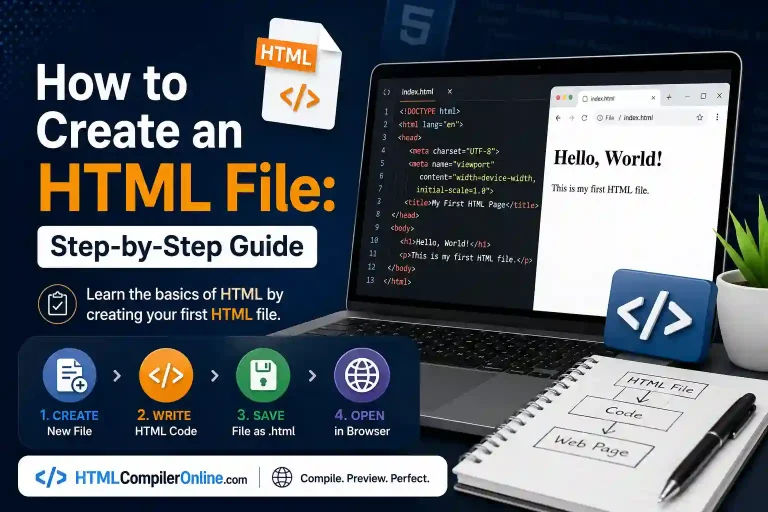
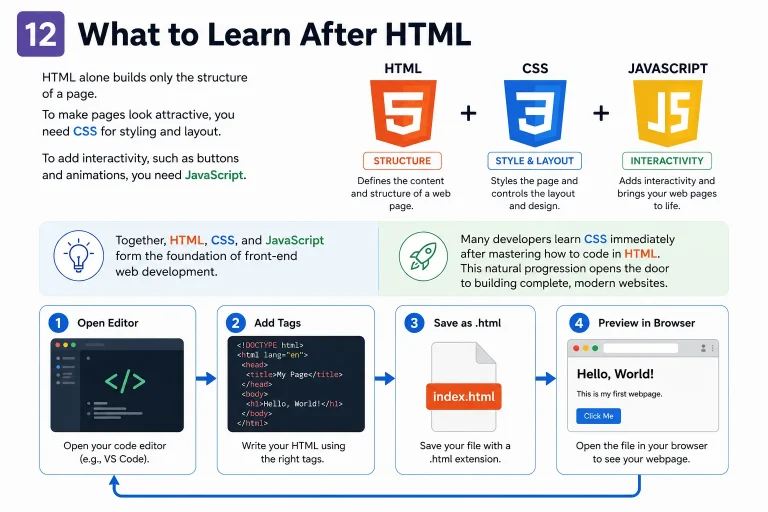
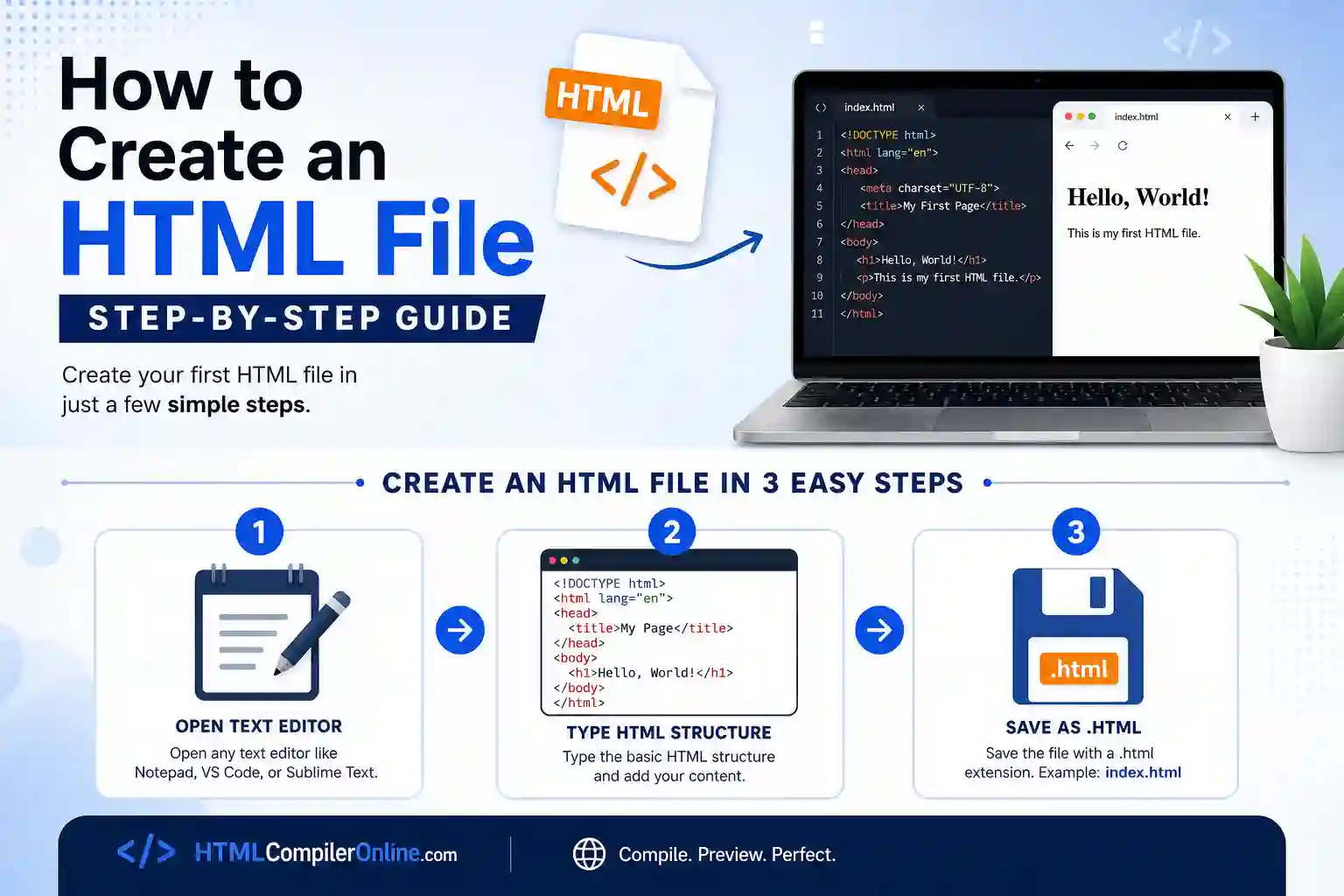
- Save your code as a file ending in .html, such as index.html.
- Locate the file in File Explorer or Finder.
- Double-click the file to open it in your default browser.
- To use a different browser, right-click and choose “Open with.”
- Edit the code, save again, then refresh the browser tab to see updates.
This approach is ideal for testing layouts, forms, or simple pages locally. It is not suitable when a page depends on a backend server or an API. For those cases, a local server is a better choice, covered later in this guide.
3. Method 2: Run HTML Code in VS Code With Live Server
VS Code offers a popular extension called Live Server. It runs your HTML file on a local address and refreshes the browser automatically every time you save.
- Open VS Code and install the Live Server extension from the Extensions panel.
- Open your project folder containing the .html file.
- Right-click the file and select “Open with Live Server.”
- The page opens automatically at an address like localhost:5500.
- Edit and save your file; the browser refreshes on its own.
This live-reload workflow is one of the fastest ways to run HTML code while actively building a page. It removes the need to manually switch tabs and refresh after every change. Most professional developers use this method daily.
4. Method 3: Use an Online HTML Compiler
Online HTML compilers let you write and run HTML code directly in a browser tab. No installation or file saving is required, which makes them ideal for quick tests.
- Open an online HTML editor such as CodePen, JSFiddle, or OneCompiler.
- Type or paste your HTML code into the editor panel.
- The rendered output appears instantly in a live preview pane.
- Errors or warnings, if any, are usually shown alongside the code.
Online compilers are useful for sharing snippets or testing ideas on a shared or locked-down computer. They are less practical for large, multi-page projects that need to be saved locally and organized in folders.
5. Method 4: Run HTML Through a Local Server
A local server is needed when a page loads other files dynamically, uses fetch requests, or depends on relative paths that browsers block for security reasons. Running one is simpler than it sounds.
| # Using Python (built into most systems)cd your-project-folderpython -m http.server 8000 |
After running this command, open a browser and visit localhost:8000 to view your page. This method mimics how a real website behaves once deployed. It is the most reliable way to run HTML code that interacts with other local files.
6. Using Browser Developer Tools While Your Code Runs
Browser developer tools let you inspect and debug a page while it runs. Every modern browser includes this feature built in, with no extra download needed.
- Press F12 on Windows or Cmd+Option+I on Mac to open developer tools.
- Use the Elements tab to inspect rendered HTML in real time.
- Use the Console tab to view JavaScript errors and warnings.
- Use the Network tab to check if images or files failed to load.
Developer tools turn a static preview into an active debugging session. They help catch layout problems and broken links before a page goes live. Learning these shortcuts saves significant troubleshooting time.
7. Comparing the Methods: Which One Should You Use?
Each method to run HTML code fits a different situation. Beginners usually start with the simplest option and move to more advanced tools as their projects grow.
| Method | Best For | Setup Needed |
|---|---|---|
| Double-click file | Quick single-page tests | None |
| VS Code Live Server | Active development with auto-refresh | VS Code + extension |
| Online compiler | Sharing snippets, no install | None |
| Local server | Pages using fetch or multiple files | Command line |
8. Troubleshooting: When HTML Code Won’t Run Correctly
Sometimes an HTML file does not display as expected. Most causes are simple and quick to fix once identified.
- The browser shows raw code instead of a page: confirm the file ends in .html, not .txt.
- Changes do not appear: save the file, then refresh the browser tab.
- The wrong page opens: check the file path and folder location.
- Images or CSS are missing: verify relative file paths are correct.
- The page looks broken in one browser only: test in a second browser to isolate the issue.
Working through this checklist resolves most problems within minutes. Keeping your project folder structure simple also prevents many of these issues from happening in the first place.
9. Running HTML Code on Mobile Devices
You can also preview HTML files on a phone or tablet without a computer. Several free mobile apps support writing and running HTML code directly on the device.
- Use a code editor app that includes a built-in browser preview.
- Email or transfer the .html file to your device, then open it in a mobile browser.
- Use an online compiler through the device’s mobile browser for a quick test.
Mobile testing is useful for checking how a page looks on smaller screens. It should not replace testing on a full desktop browser during development. Both checks together give a complete picture of how a page performs.
10. Summary
Running HTML code is as simple as saving a file and opening it in a browser. Beginners can double-click a file, while active developers benefit from VS Code Live Server’s auto-refresh. Online compilers work well for quick, install-free tests, and a local server handles pages that need dynamic file access. Developer tools help debug issues while the code runs.
11. FAQs
Q: How do I run an HTML file without a server?
A: Save the file with a .html extension and double-click it to open in your browser. This works for most basic pages without any server or installation. It is the fastest way to run HTML code for simple projects.
Q: How to execute HTML code in VS Code?
A: Install the Live Server extension, then right-click your .html file and choose “Open with Live Server.” The page opens on a local address and refreshes automatically as you save changes.
Q: Can I run HTML code without downloading software?
A: Yes, online HTML compilers like CodePen or OneCompiler let you write and preview code directly in the browser. No installation is required, making them useful for quick tests.
Q: Why won’t my HTML file run correctly in the browser?
A: This is usually caused by an incorrect file extension, a broken file path, or missing changes that were not saved. Confirm the file ends in .html and refresh the browser after saving.
Q: Do I need a local server to run HTML code?
A: A local server is only needed for pages that use fetch requests or load multiple files dynamically. Simple static pages run fine by opening the file directly in a browser.